My Terminal Setup for Coding with Claude Code
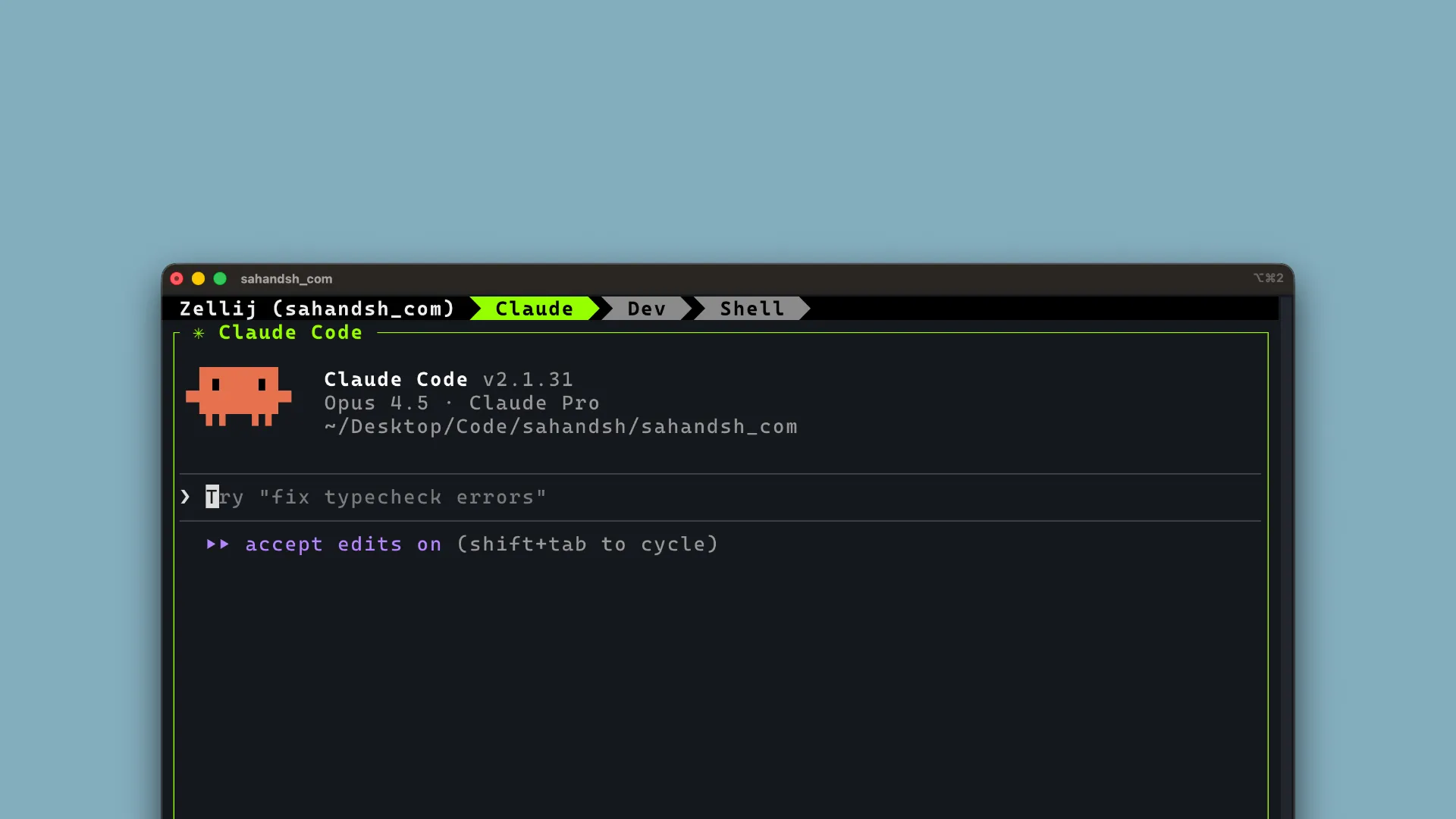
When I code these days, I always have three tabs open:
- One for Claude Code
- One for the dev server
- One for general shell commands
Since Claude Code lives in my terminal, the terminal has become my primary workspace. That means I need three tabs per project, minimum.
Here’s the workflow I’ve set up: I just type zl and it opens a full Zellij session with three tabs. Each terminal tab in my setup represents a separate project, but within Zellij, I have access to all three panes for that project.
The Problem with Multiple Projects
I used to think I could only focus on one project at a time. But honestly? I didn’t have a good way to group tabs per project in my terminal. Switching between projects meant mental overhead—figuring out which tab belonged to what, accidentally running commands in the wrong place.
Then I discovered Zellij.
Zellij Sessions Changed Everything
Zellij is a terminal multiplexer (like tmux, but more modern). It’s written in Rust, has a beginner-friendly UI with on-screen keybinding hints, and supports layouts via simple config files. The key feature for me: sessions with their own tabs.
Now when I’m working on three projects, I have three terminal tabs. But each one contains a Zellij session with its own set of tabs. And those tabs are always the same structure:
- Claude Code
- Dev server (project-specific)
- Shell
I can jump between projects cleanly. Each session is isolated. No more confusion.
Taking It Further with zl
I kept manually creating sessions and setting up the same three-tab layout. It got repetitive. So I wrote a small bash function called zl that:
- Uses the current directory name as the session name
- Attaches to an existing session if one exists
- Creates a new session with my default 3-tab layout if it doesn’t
- Uses a project-specific
.zellij.kdllayout file if one exists
Without this, you’d have to manually create tabs and save the session every time you start working on a project. With zl, it generates a default layout on the fly—no need to maintain layout files unless you want project-specific customizations.
Now my workflow is: cd into a project, run zl, and I’m ready to go.
The Code
Here’s the zl function if you want to use it yourself:
zl() {
    local session_name=$(basename "$PWD")
    local layout_file=".zellij.kdl"

    # Check if session already exists (strip ANSI codes before matching)
    if zellij list-sessions 2>/dev/null | sed 's/\x1b\[[0-9;]*m//g' | grep -q "^${session_name} "; then
        zellij attach "$session_name"
        return
    fi

    # Check for project-specific layout
    if [[ -f "$layout_file" ]]; then
        zellij -s "$session_name" --new-session-with-layout "$layout_file"
        return
    fi

    # Use default layout (generated on the fly)
    # Note: macOS mktemp doesn't support suffixes, so we create the temp
    # file first then rename it with the .kdl extension
    local temp_base=$(mktemp /tmp/zellij-default-XXXXXX)
    local temp_layout="${temp_base}.kdl"
    mv "$temp_base" "$temp_layout"
    cat > "$temp_layout" << EOF
layout {
    cwd "$PWD"

    default_tab_template {
        pane size=1 borderless=true {
            plugin location="tab-bar"
        }
        children
        pane size=2 borderless=true {
            plugin location="status-bar"
        }
    }

    tab name="Claude" focus=true {
        pane {
            command "claude"
            args "--dangerously-skip-permissions"
        }
    }

    tab name="Dev" {
        pane
    }

    tab name="Shell" {
        pane
    }
}
EOF
    zellij -s "$session_name" --new-session-with-layout "$temp_layout"
    rm -f "$temp_layout"
}
Save this to ~/.config/zellij/zl.sh and add source ~/.config/zellij/zl.sh to your .zshrc.
If you’re using Claude Code and find yourself juggling multiple projects, give Zellij a try. The session-per-project model has made my terminal workflow significantly cleaner.
Last modified: 5 Feb 2026